Front desk
Check-in, selling and collecting, registering families and the cash drawer, from one screen.
For front desk staff
Checking in
The first screen at the desk. In seconds it tells you whether a member can go in, and why.
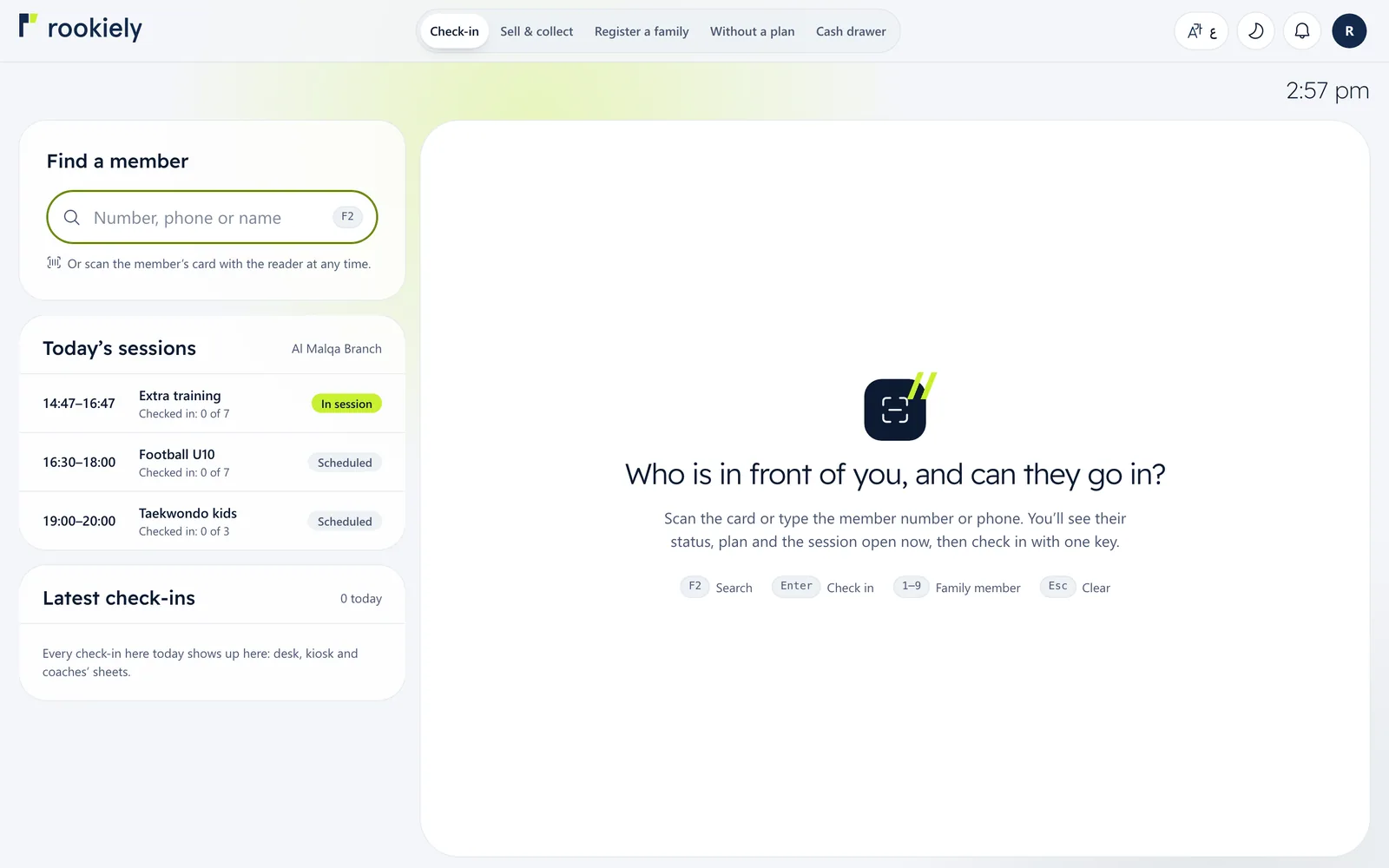
1Search for the member or scan their card
Press F2 and type a name, mobile number or membership number. You can also scan the member’s card with the barcode reader at any time, without clicking anything.
Today’s sessions at your branch and the latest check-ins are on the side of the screen.
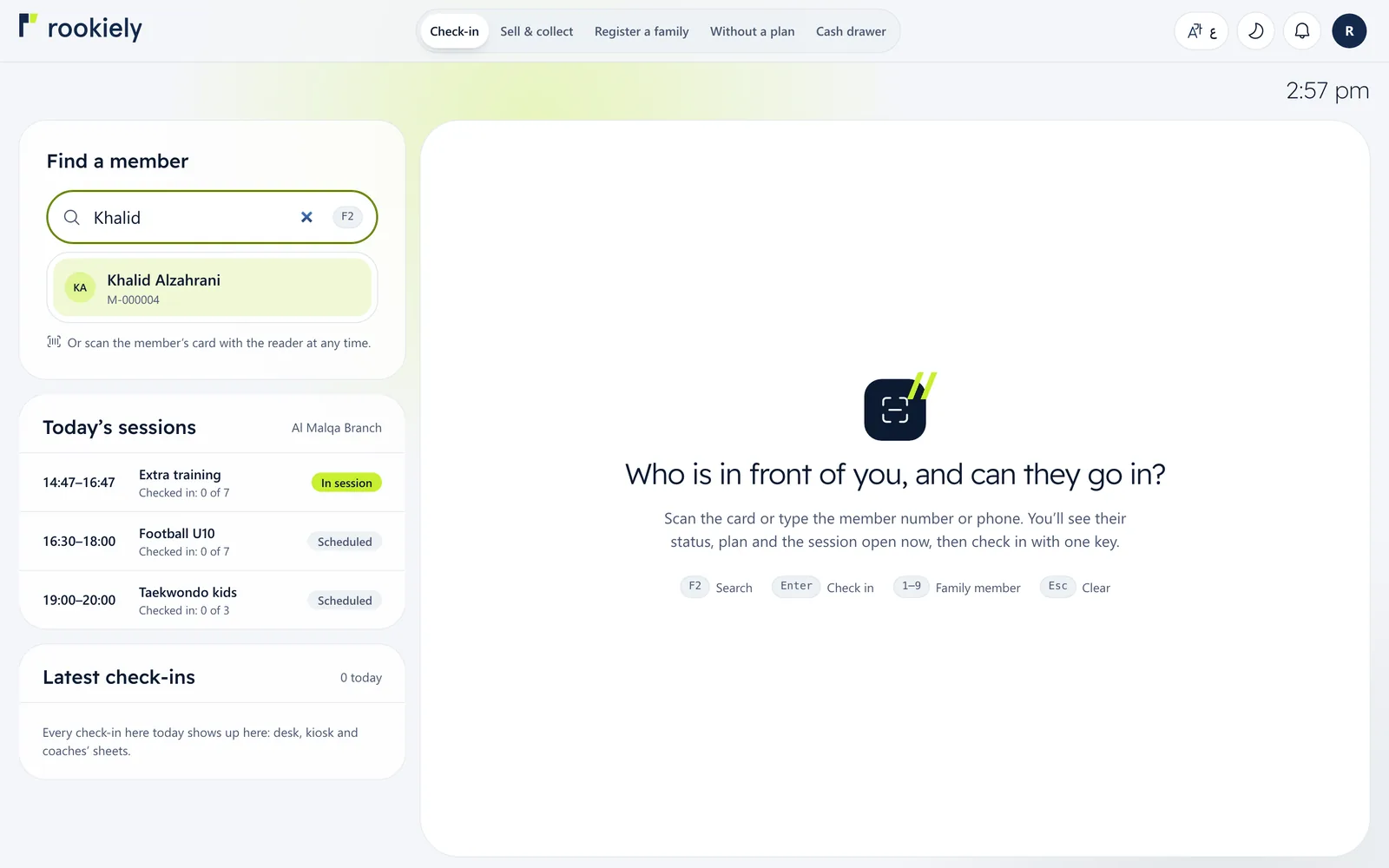
2Pick the member from the results
Results appear as you type, with each membership number, so you can be sure you have the right person.
3Check the status and check in
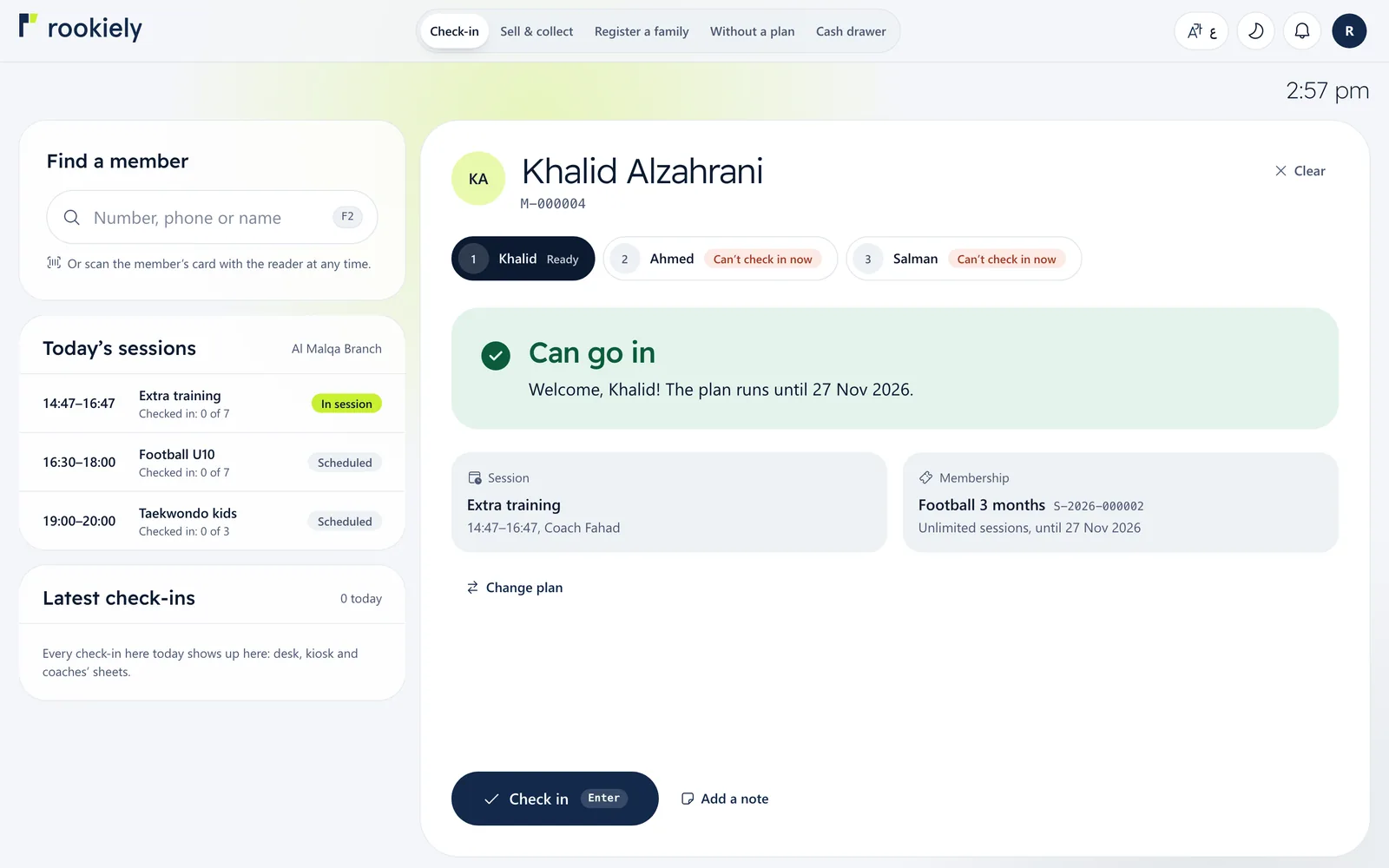
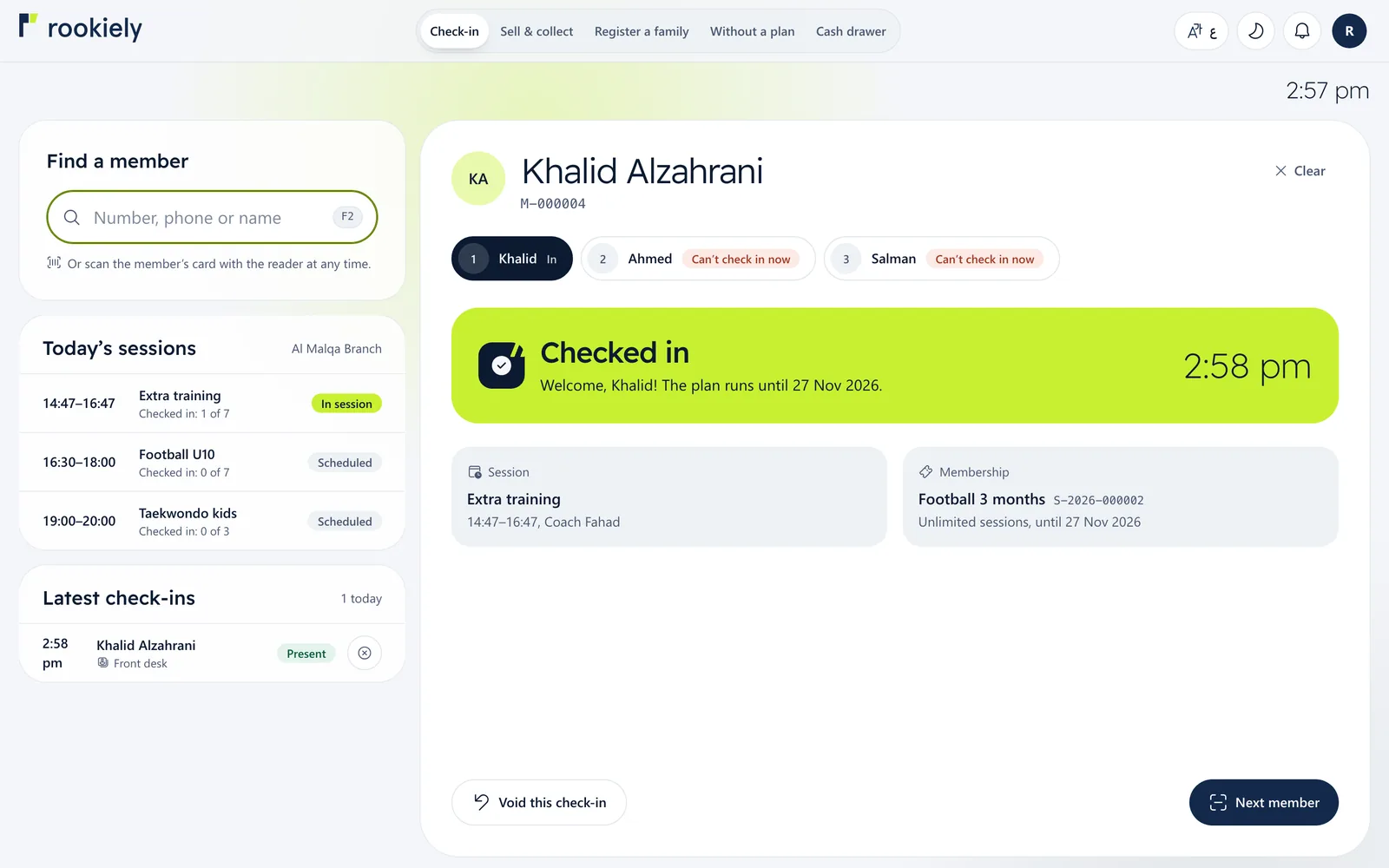
Green means the member can go in, with the session running now and the membership the visit counts against. Press “Check in” or Enter.
If the card belongs to a family, each member is listed at the top; pick one with the keys 1 to 9.
4Checked in
You see the confirmation with the time, and the member joins the latest check-ins. If it was a mistake, press “Undo this check-in” and the session goes back to their balance.
5When a member can’t go in
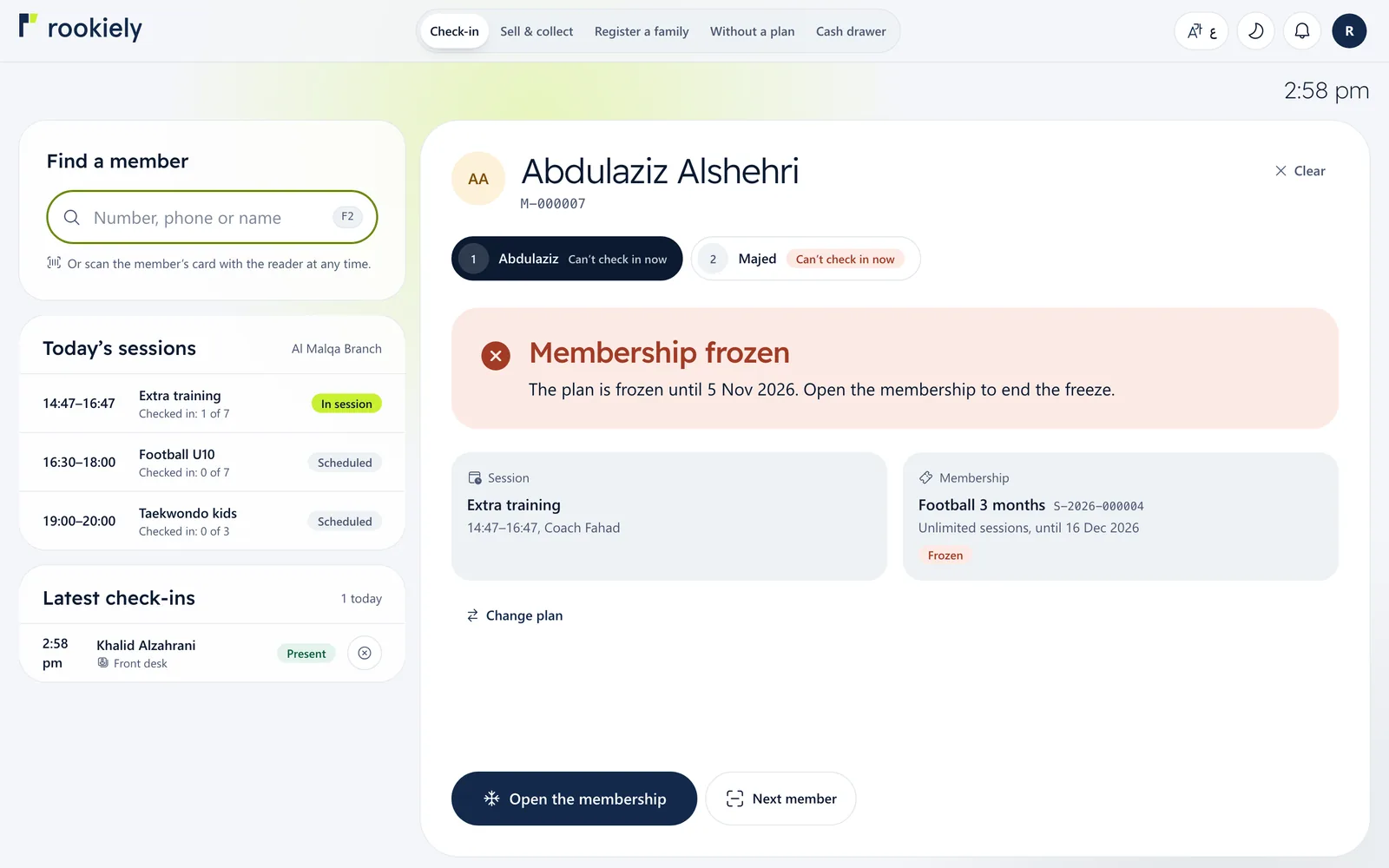
The system explains why in plain words, such as a frozen or expired membership or no sessions left, and offers the right action straight away: open the membership, renew it, or change the plan.
Selling and collecting
6Build the sale
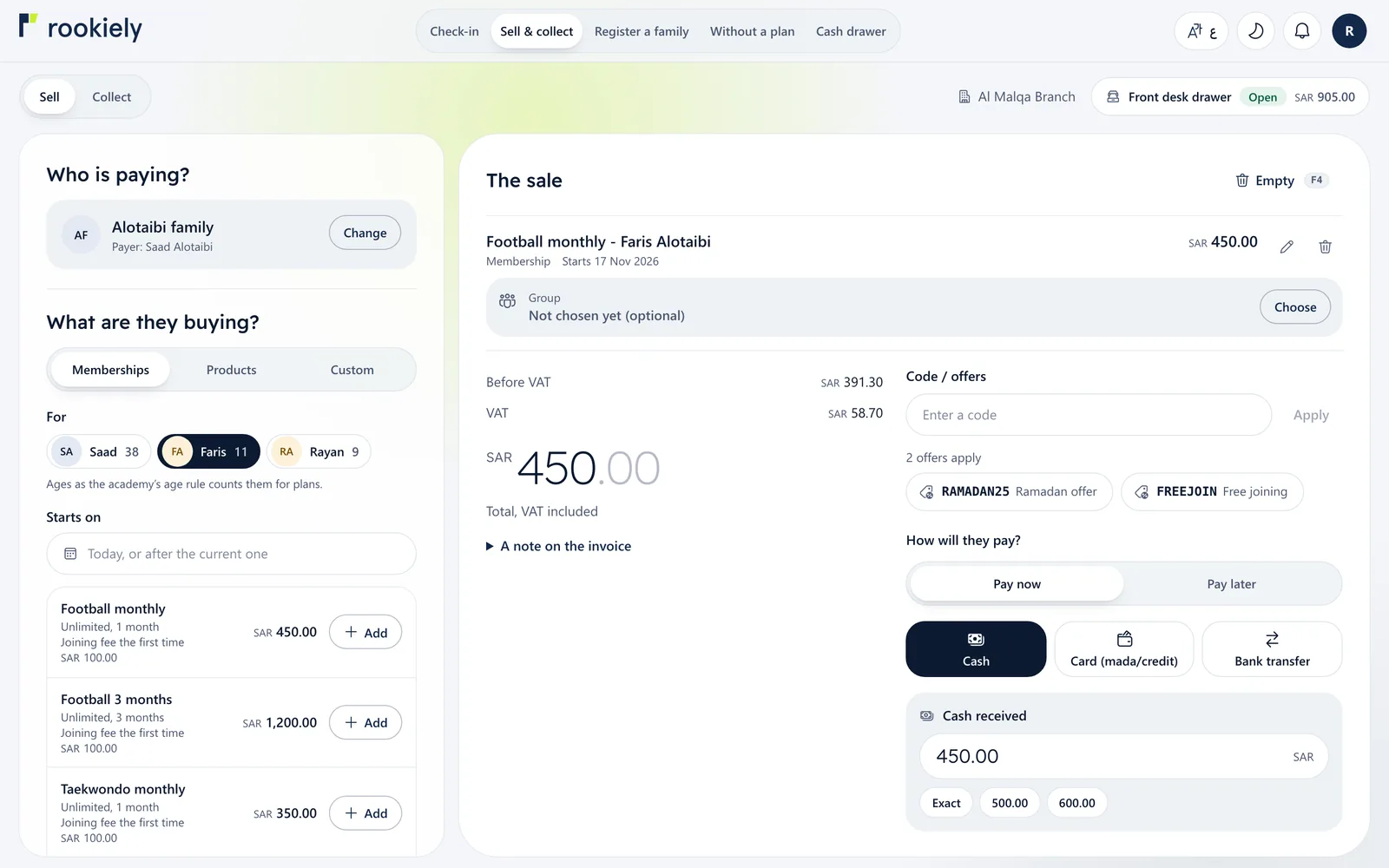
In “Sell and collect”, choose the family that pays, then the member and the plan, and press “Add”. Registration fees, the sibling discount and VAT are worked out for you, and you can add a coupon.
Choose how they pay: cash, card or transfer, split it across several, or choose “Pay later”.
7Collect and print the receipt
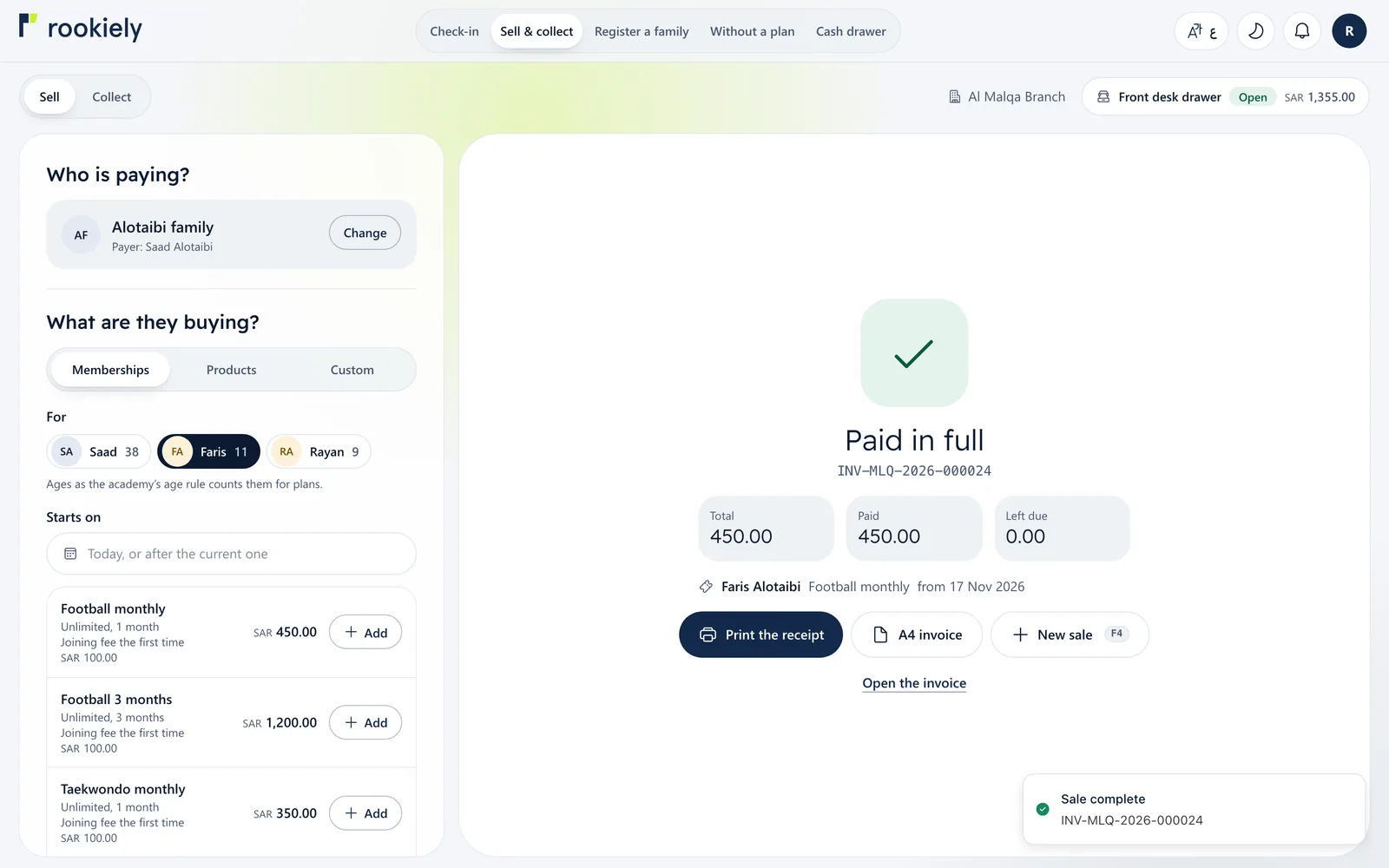
Press “Collect” or F8. The tax invoice is issued at once; print the thermal receipt or an A4 invoice, then start a new sale.
Registering a new family
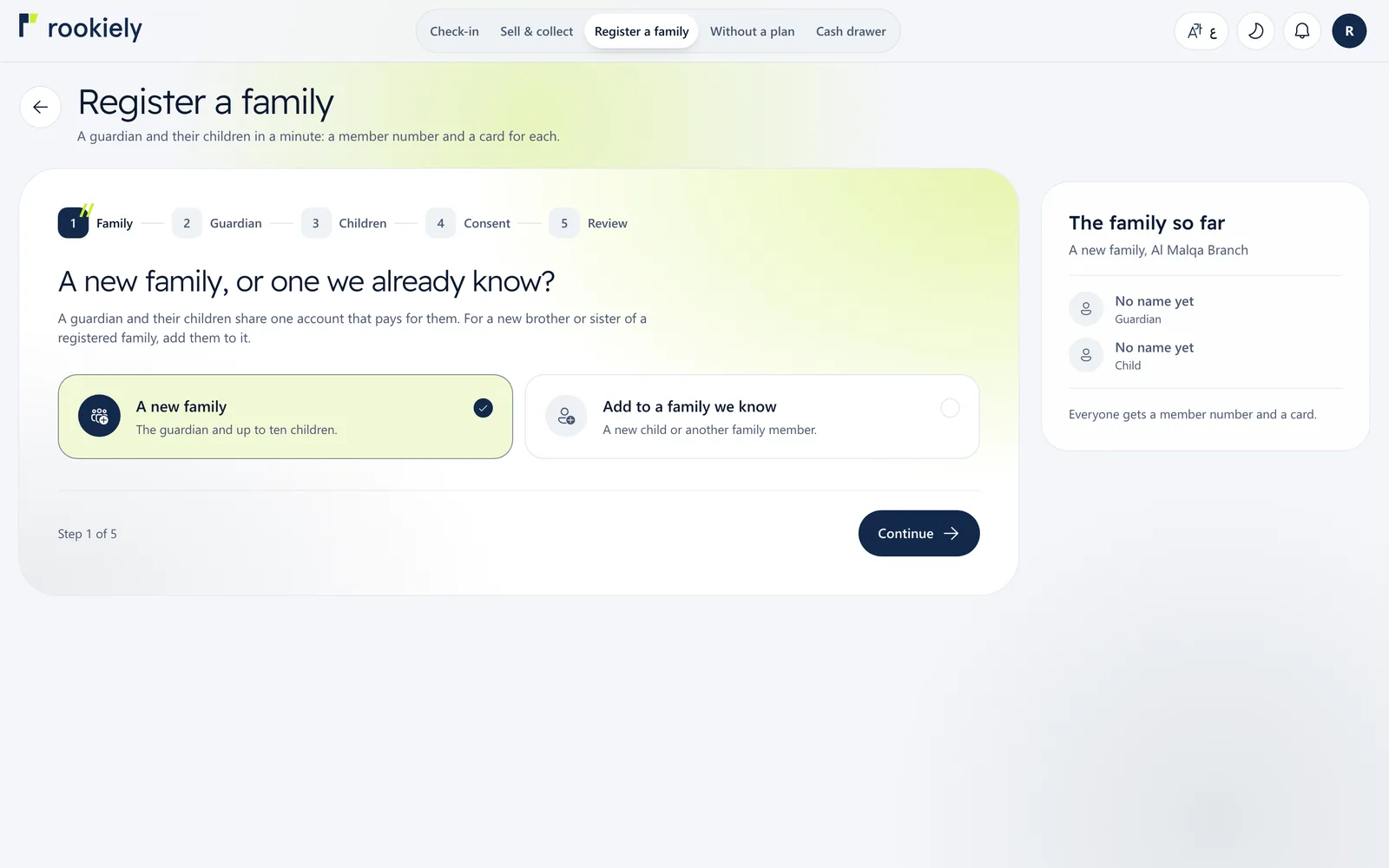
8Register the family in five steps
Choose a new family or add someone to an existing one, then the guardian, the children, consent to the terms, and a final review. Everyone gets a membership number and a card.
After registering you can go straight to the sale to add their memberships.
The cash drawer
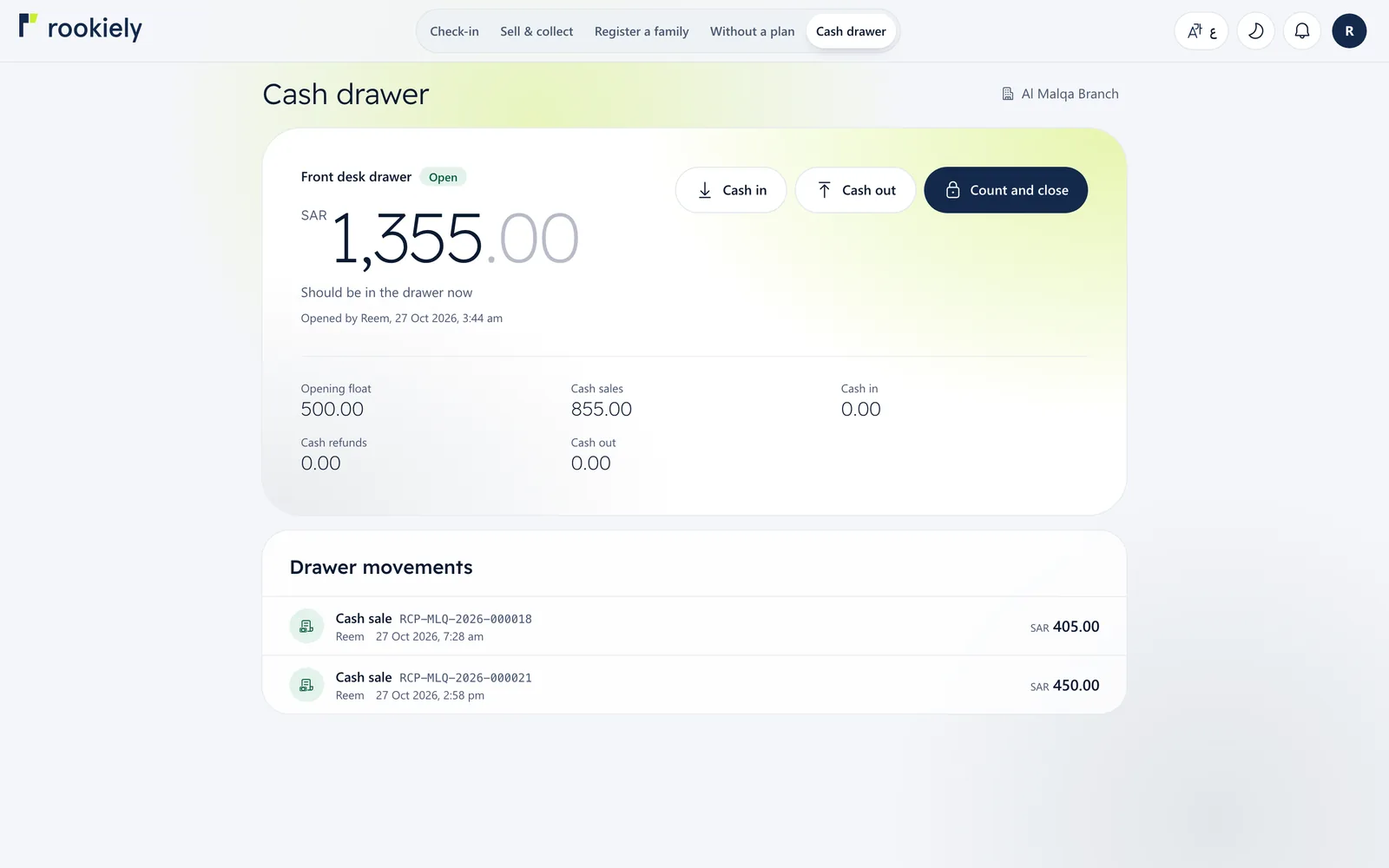
9Open, follow and close your drawer
Open the drawer at the start of your shift with an opening float, and record any cash in or out. You see the expected amount and every movement; at the end of the shift press “Count and close” and enter what is actually there.